Plugin Repo
Add, edit, reorder and group the commands in OctoPrint's System menu, with icons and section headings
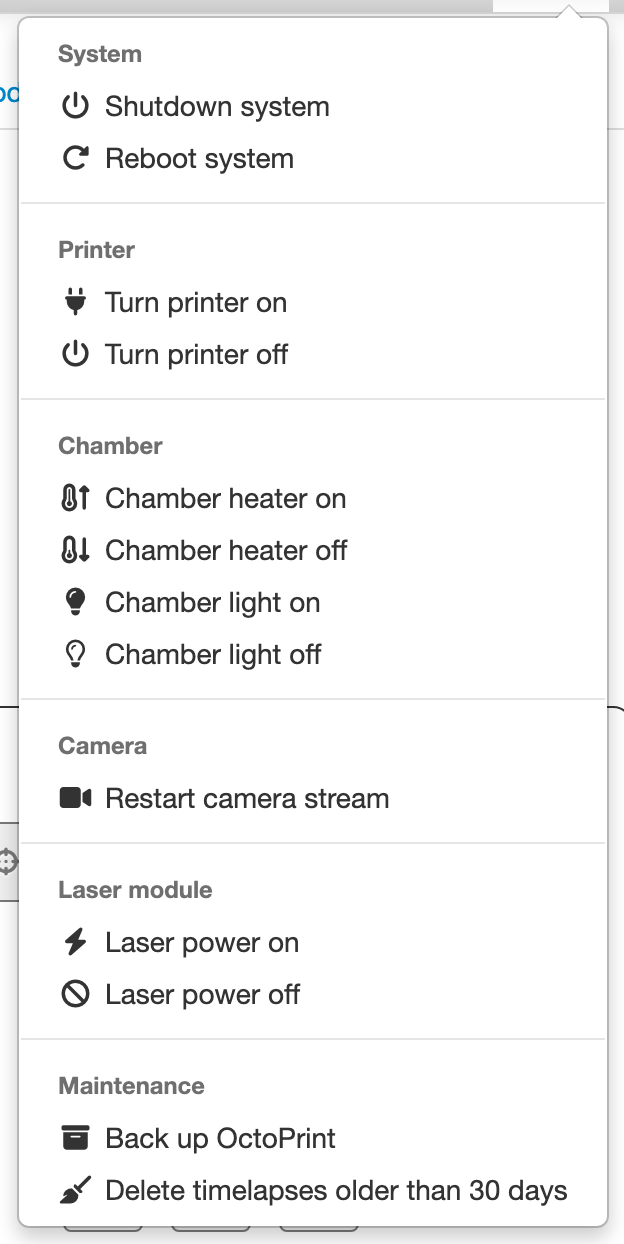
Add, edit, reorder and group the commands in OctoPrint’s System menu, the power icon in the navigation bar, from Settings → Plugins → System Command Editor.
What it does
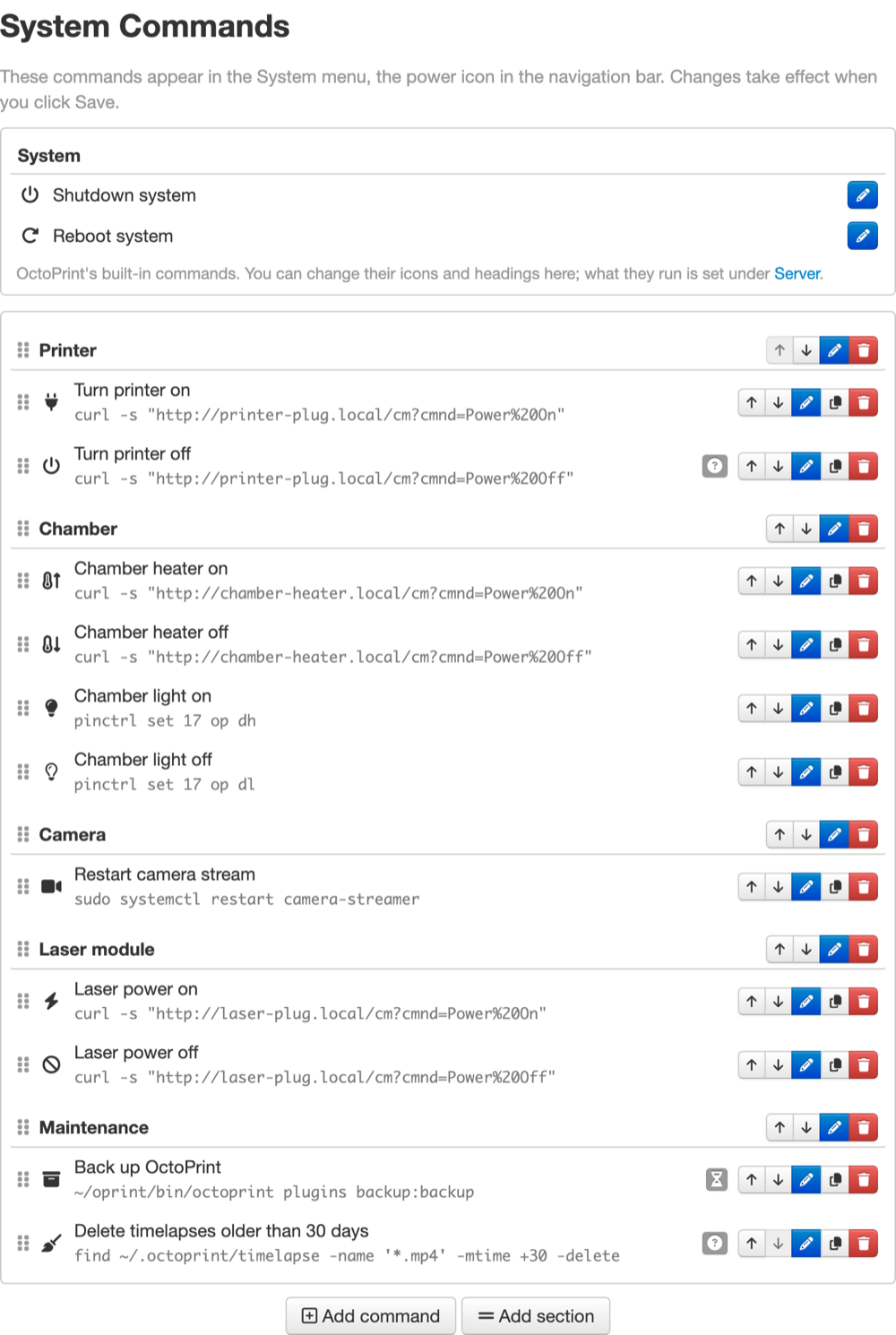
- Lists your commands the way the System menu shows them. Each row has buttons to edit, duplicate, delete, and move it up or down, and you can drag rows by their handle.
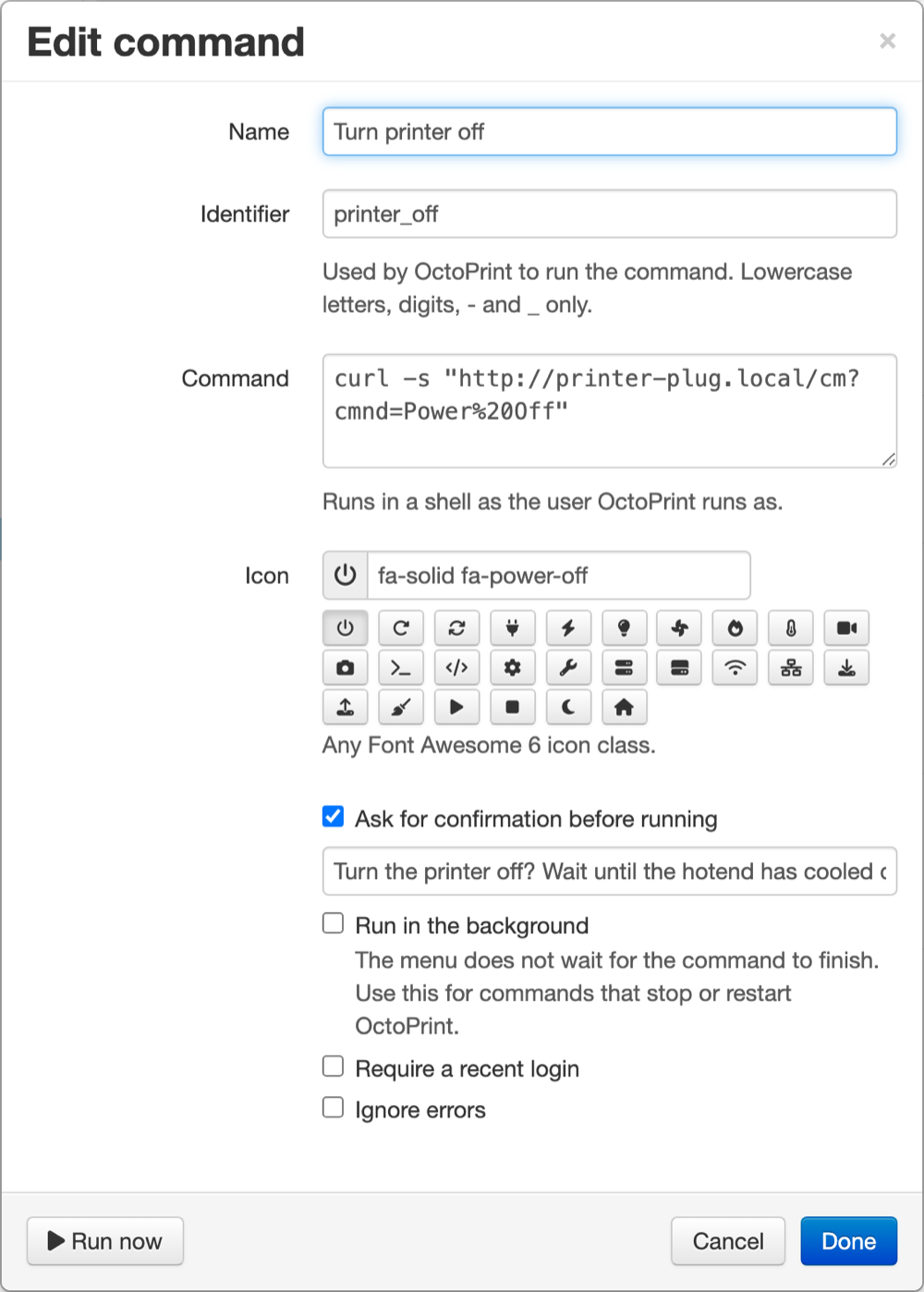
- Add command opens an editor for the name, the shell command, an icon and these options:
- ask for confirmation, with your own message
- run in the background, for commands that stop or restart OctoPrint
- require a recent login
- ignore errors
- Add section adds a divider, with an optional heading that the System menu shows above the commands that follow it.
- Run now in the editor runs a saved command so you can try it.
- OctoPrint’s built-in entries (Shutdown, Reboot, Restart, Restart in safe mode) get icons and the headings “System” and “OctoPrint” out of the box, and you can change both. What they run stays under Settings → Server.
Changes take effect when you click Save. On OctoPrint 2.0 you are asked for your password, because OctoPrint requires a recent login to change system commands.
Only the plugin’s own CSS and JavaScript are used; OctoPrint itself is not modified.
Examples
Any shell command the OctoPrint user can run works, for example:
- Printer power: switch a smart plug, like
curl -s "http://printer-plug.local/cm?cmnd=Power%20On"for a Tasmota plug. - Chamber: switch a chamber heater on its own plug, or chamber lights on a relay with
pinctrl set 17 op dh/op dl. - Camera:
sudo systemctl restart camera-streamer. - Laser module: power a laser on and off through its own plug.
- Maintenance:
~/oprint/bin/octoprint plugins backup:backupto back up OctoPrint, or delete old timelapses.
Turn on confirmation for anything you would not want to click by mistake, like turning the printer off while the hotend is still hot.
Where your commands are kept
Commands are stored where OctoPrint keeps them, under system.actions in config.yaml. The plugin keeps no copy
of its own, so if you uninstall it, your commands stay in the System menu.
Upgrading from 1.x
Version 2.0 converts the commands 1.x left behind, once, on its first start. It saves both old lists to
data/systemcommandeditor/pre-2.0-backup-<date>.yaml first. It then restores missing commands, removes
duplicates and stray dividers, and writes what it did to octoprint.log.
Pictures