Plugin Repo
Control Home Assistant lights and switches from OctoPrint, with brightness, colour, print status lighting and delayed shutoff.
Control your printer enclosure lighting and other Home Assistant lights or switches from OctoPrint. Search for entities in settings, toggle them from the navbar, and adjust brightness or RGB colour on supported lights. Optional automation follows print events and switches lights off after a configurable delay.
Maintained by Mark Bloom and idontwantfame, originally based on OctoLight by Žiga Kralj.
Features
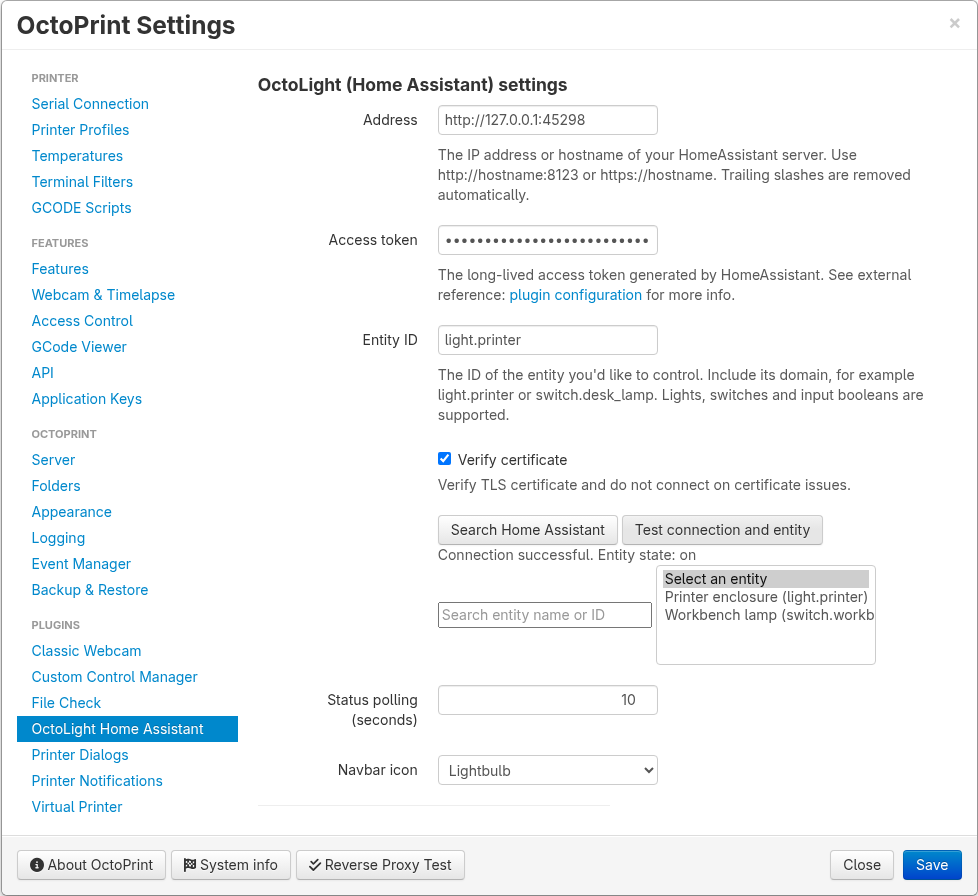
- Search Home Assistant by friendly name or entity ID and test access before saving.
- Control multiple entities independently, with individual navbar icons, print automation settings and shutoff timers.
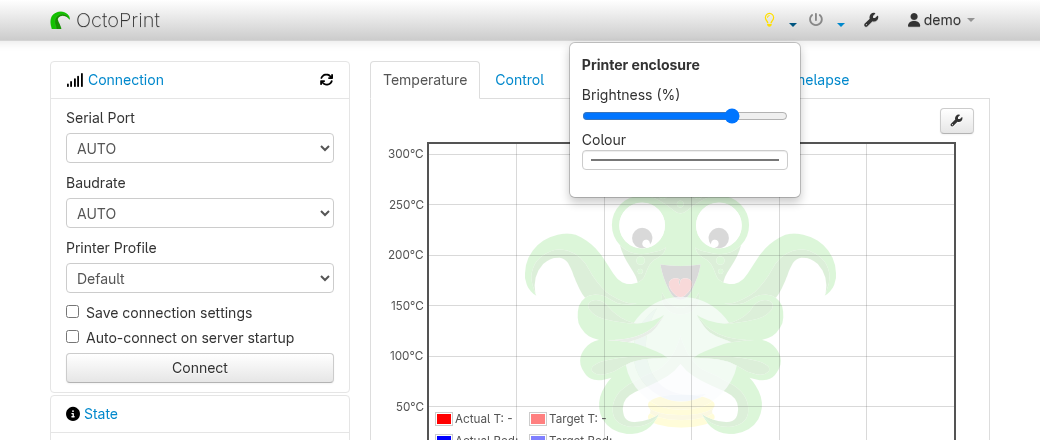
- Adjust brightness and RGB colour from navbar menus or configure turn-on defaults.
- Refresh state from Home Assistant, including changes made in other apps. Unavailable entities are distinguished from lights that are off.
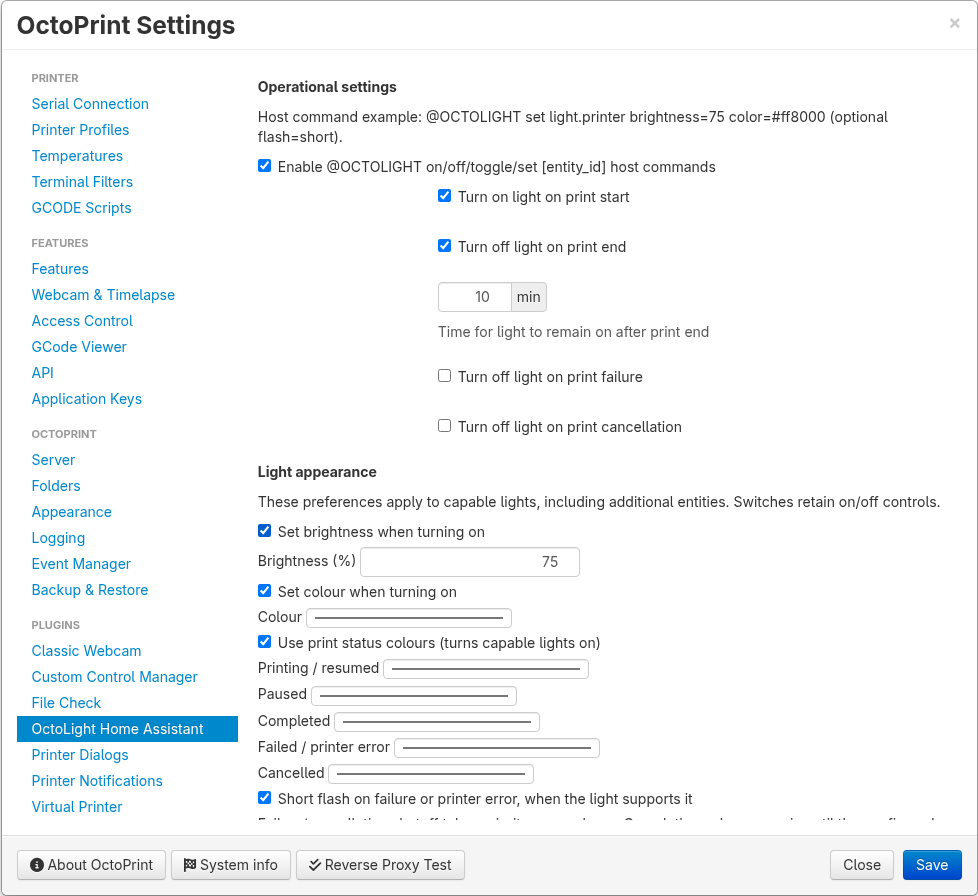
- Optionally apply configurable colours for printing, pause, completion, cancellation and errors, plus a native short error flash on supported lights.
- Turn lights on at print start and off after completion, failure or cancellation. New prints and manual controls cancel pending completion shutoff timers.
- Control configured entities using opt-in
@OCTOLIGHThost commands or an authenticated HTTP API.
Brightness, RGB colour and native flashes depend on each light’s capabilities.
switch and input_boolean entities provide on/off control.
Requirements and setup
Requires Python >=3.9,<4, OctoPrint >=1.8.0,<3 on Linux, and a Home Assistant instance reachable from the OctoPrint host. Create a Home Assistant long-lived access token with access to the entities you want to control.
- Install the plugin and restart OctoPrint.
- Open Settings → OctoLight Home Assistant.
- Enter your Home Assistant URL and long-lived access token.
- Select Search Home Assistant, then choose a light, switch or input boolean.
- Select Test connection and entity, save, and configure optional automation.
Tested with OctoPrint 1.8.0 / Python 3.9, 1.11.8 / Python 3.9 and 3.10, and 2.0.0rc7 / Python 3.12. OctoPrint 2 testing covers this release candidate. Automated checks use Linux and a simulated Home Assistant; physical devices, Windows and macOS have not been verified.
G-code and API
Enable @OCTOLIGHT host commands in settings to control configured entities from OctoPrint’s Terminal, G-code scripts, streamed G-code files or OctoDash actions:
@OCTOLIGHT on
@OCTOLIGHT set brightness=75 color=#ff8000
@OCTOLIGHT set light.printer color=#ff0000 flash=short
@OCTOLIGHT off
Commands run asynchronously and target configured entities only. Printing directly from a printer’s SD card does not process these host commands.
The API is /api/plugin/octolightHA. GET reads cached state; authenticated JSON
POST requests operate lights. See the
API documentation
for commands and permission requirements.
Connections and credentials
The plugin sends authenticated REST requests to the Home Assistant address you configure. Home Assistant can run locally; no vendor cloud account is required. Network requests use timeouts and run outside OctoPrint’s event and serial command dispatch threads.
New configurations verify HTTPS certificates by default; existing preferences are preserved on upgrade. Local HTTP addresses are also supported. The access token stays server-side, is masked in settings and is not logged. Credentials require Settings permission, light controls require Control permission, and state access requires Status permission.
For configuration details, troubleshooting and release notes, see the project README and releases.
Pictures